
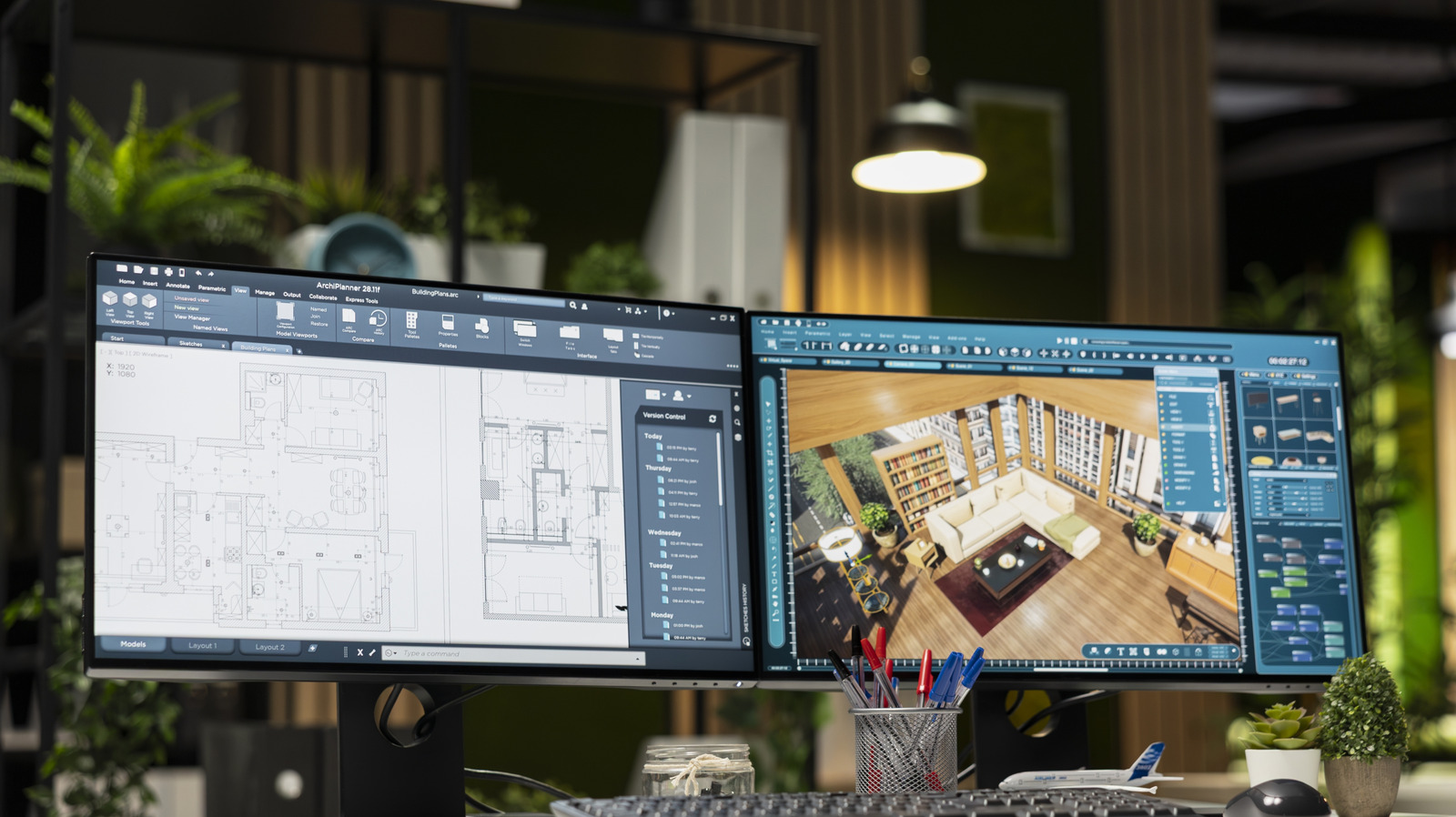
Many users rely on dual monitors to enhance productivity and multitasking, yet configuring this setup can lead to various complications. Despite the convenience that two screens provide, misconfigurations can result in frustrating issues that impact daily tasks. Understanding some common problems and their solutions can help ensure a seamless dual-monitor experience.
Common Issues with Dual Monitor Setups
One of the most frequent problems encountered is the scenario where only one monitor works. This often occurs when users mistakenly connect a second monitor to the motherboard’s HDMI port instead of the dedicated graphics card. It is advisable to connect the monitor directly to the graphics card, as integrated graphics are usually disabled when a dedicated GPU is active. In addition, when using a USB-C adapter, users should ensure that the port supports DisplayPort “Alt” mode for optimal performance.
Another issue arises when the display arrangement on the computer does not match the physical setup of the monitors. For instance, if the computer mistakenly identifies the left monitor as the right one, dragging windows between screens can become confusing. Windows, macOS, and Linux operating systems offer options in display settings to adjust the arrangement of monitors easily. Users should also verify that all monitors are set to the desired resolution to maintain consistency.
Some users may experience lag between monitors due to discrepancies in refresh rates. A higher refresh rate on one monitor compared to the other can create an uncomfortable viewing experience. Users are encouraged to set both monitors to the highest refresh rate that they can support to achieve a more uniform experience.
Performance and Visual Discrepancies
Another common concern is when monitors are connected to different GPUs. While modern operating systems can handle multiple GPUs, performance issues may arise if applications are not directed to the preferred GPU. For example, when gaming, the monitor connected to the GPU rendering the game should be the primary display. If not, users may experience lower performance or blank screens.
User Interface (UI) scaling can also present challenges, particularly when using monitors with varying resolutions. For instance, if one monitor has a resolution of 1920×1080 and another boasts 3840×2160, UI elements may appear too small on the higher-resolution screen. Windows provides options to adjust scaling settings, allowing users to customize the size of text and icons for both displays.
In addition, differences in color, contrast, and brightness between monitors can detract from the overall experience. Although most monitors undergo factory calibration, it may still be beneficial to calibrate them to ensure consistency. Users can utilize built-in calibration tools in their operating systems or third-party applications to align the displays more closely.
Gaming performance may also suffer when multiple monitors are connected. Benchmarks indicate that the presence of a second monitor can lead to reduced frame rates and stuttering, particularly when running resource-intensive applications. It is advisable for gamers to test their performance with only the primary monitor activated. If issues persist, connecting the second monitor to a different GPU may alleviate performance concerns.
Lastly, managing the mouse pointer can become problematic in dual-monitor setups, particularly if the physical arrangement of the monitors does not match the virtual alignment in the operating system. Adjusting the monitor arrangement within display settings can help resolve this issue, ensuring a smoother transition of the mouse pointer between screens.
Final Thoughts on Dual Monitor Setups
As dual-monitor setups become increasingly common, understanding the potential pitfalls can help users optimize their configurations. While the early days of dual monitors were often plagued by bugs and complications, modern systems have made significant improvements. For those seeking an alternative, ultrawide monitors present a compelling solution, providing the benefits of dual screens without the associated hassles.
Ultimately, whether through effective troubleshooting or by exploring alternative display options, users can enjoy a more efficient and comfortable dual-monitor experience.