
Many users find Windows 11 increasingly cumbersome, citing a mix of advertisements, unnecessary features, and performance issues. While some complaints are subjective, the cumulative effect of these elements can make the operating system feel sluggish and inefficient. Fortunately, there are practical steps to alleviate these concerns by disabling certain features and services. Here are seven modifications that can enhance your Windows 11 experience.
Disable Windows Telemetry
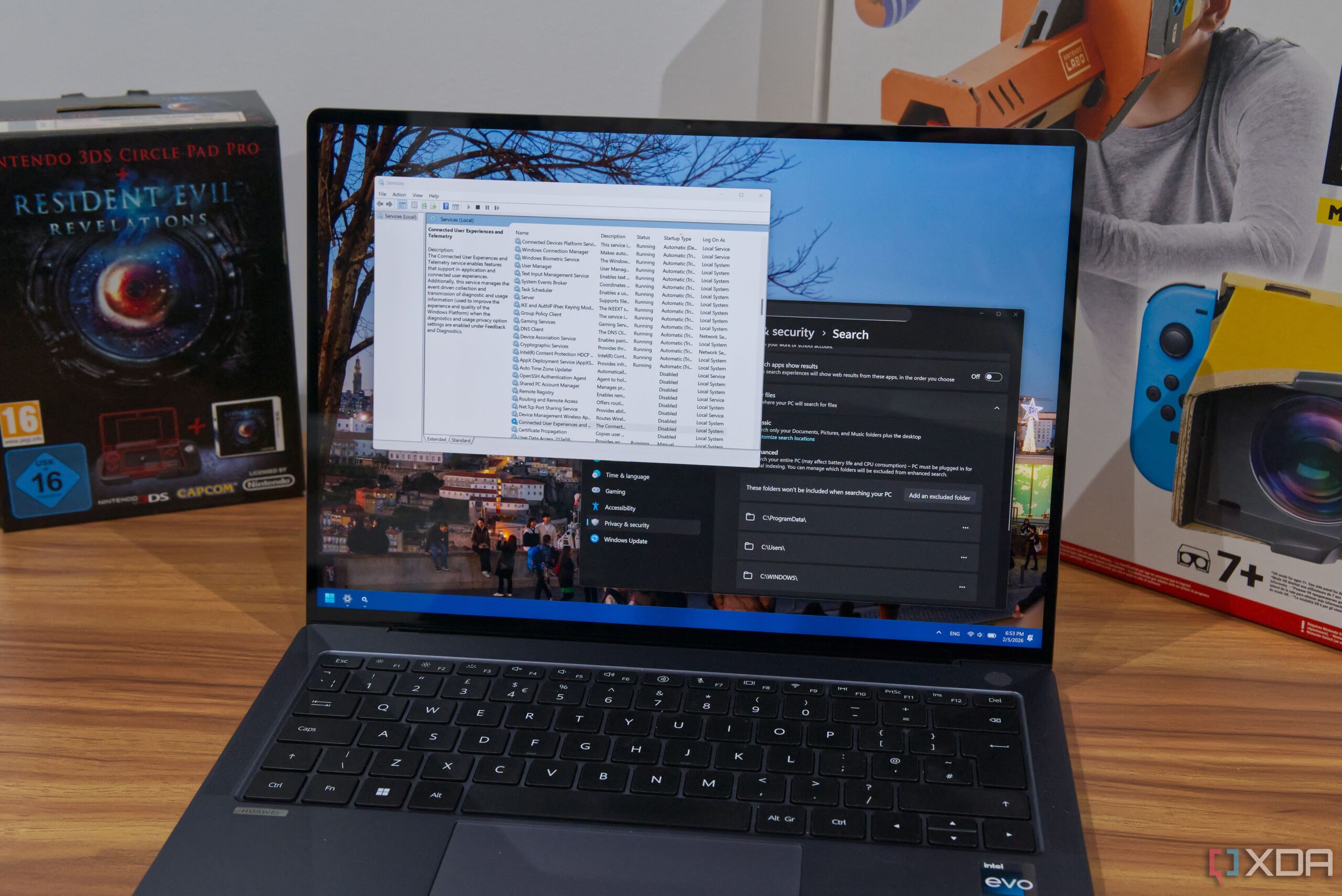
A primary point of contention for many users is Microsoft’s telemetry data collection. This feature is designed to gather information about system usage and configurations to identify and rectify issues. However, given the ongoing reliability problems associated with Windows 11, some users question the utility of this data. Disabling Windows telemetry can improve performance with minimal downsides. This can be done through the Services dialog, accessible via the Start menu, under the name Connected User Experiences and Telemetry.
Turn Off Search Indexing
Searching for files on Windows often proves frustrating, as not all directories are indexed. The Windows Search function can be painfully slow, particularly when using the Start menu. Disabling this service can streamline the search process, allowing for a more efficient experience. Users seeking a faster alternative may consider the Everything app by Voidtools, which indexes files rapidly and supports wildcard searches.
The built-in Windows search primarily serves as an application launcher, so removing the search feature can enhance usability without sacrificing functionality.
Eliminate Bing Search Integration
The search bar in Windows 11 also includes web search capabilities powered by Bing, which tends to redirect results to Microsoft Edge regardless of the user’s preferred browser. This integration can complicate searches and introduce unwanted lag. To disable Bing search, navigate to the Settings app under Privacy & Security and select Search. Users are generally better served by using their preferred web browser for online searches.
Remove Microsoft Edge
Microsoft Edge, which comes pre-installed with Windows 11, has received mixed reviews from users. While the European Commission has mandated that Microsoft allow users in the European Economic Area to uninstall Edge, users worldwide still face limitations. However, there are methods to remove Edge by tricking Windows into thinking the device is located in the EEA. Once removed, users can rely on their browser of choice and reduce background processes associated with Edge.
Limit Widget Functionality
Widgets were introduced in Windows 11 with the promise of enhancing user experience, but many find the current offerings lackluster. The widgets available are predominantly web service-oriented and often feel sluggish. While it is not possible to completely remove the Widgets feature, users can remove the Widgets button from the taskbar to alleviate some resource drain. This small adjustment can contribute to a more streamlined interface.
Manage OneDrive Settings
OneDrive’s automatic backup feature can become a nuisance, particularly for users who do not utilize the cloud storage service. Upon signing in with a Microsoft account, Windows 11 may automatically back up user folders, including Desktop, Documents, and Pictures, to OneDrive. With only 5GB of free storage available, this can lead to unnecessary complications. Users who do not intend to use OneDrive should consider uninstalling the application or disabling automatic backups to save resources and storage space.
Remove Copilot Features
Since its introduction in March 2023, Microsoft’s Copilot assistant has been incorporated into various Windows applications, including Notepad and Paint. While some users may find value in AI features, others prefer a more traditional workspace. Uninstalling the Copilot app is straightforward; for those wishing to eliminate all associated features, a PowerShell script called RemoveWindowsAI is available and has proven effective in streamlining the user experience.
Making these adjustments can significantly improve your interaction with Windows 11. As users explore alternatives like macOS and Linux, the intrusive nature of certain Windows features can be jarring. By implementing the changes detailed above, users may find a more efficient and pleasant computing environment.